What is being measured
Epic’s Camera Calibration workflow uses a Lens File to store distortion, focal-length, and nodal-offset information. The quick start calls for a file for each lens-and-camera-body combination and correct sensor dimensions, including crop factors. It also distinguishes distortion calibration from nodal-offset calibration: the latter needs camera tracking in this workflow.
Source: Camera Lens Calibration Quick Start Guide
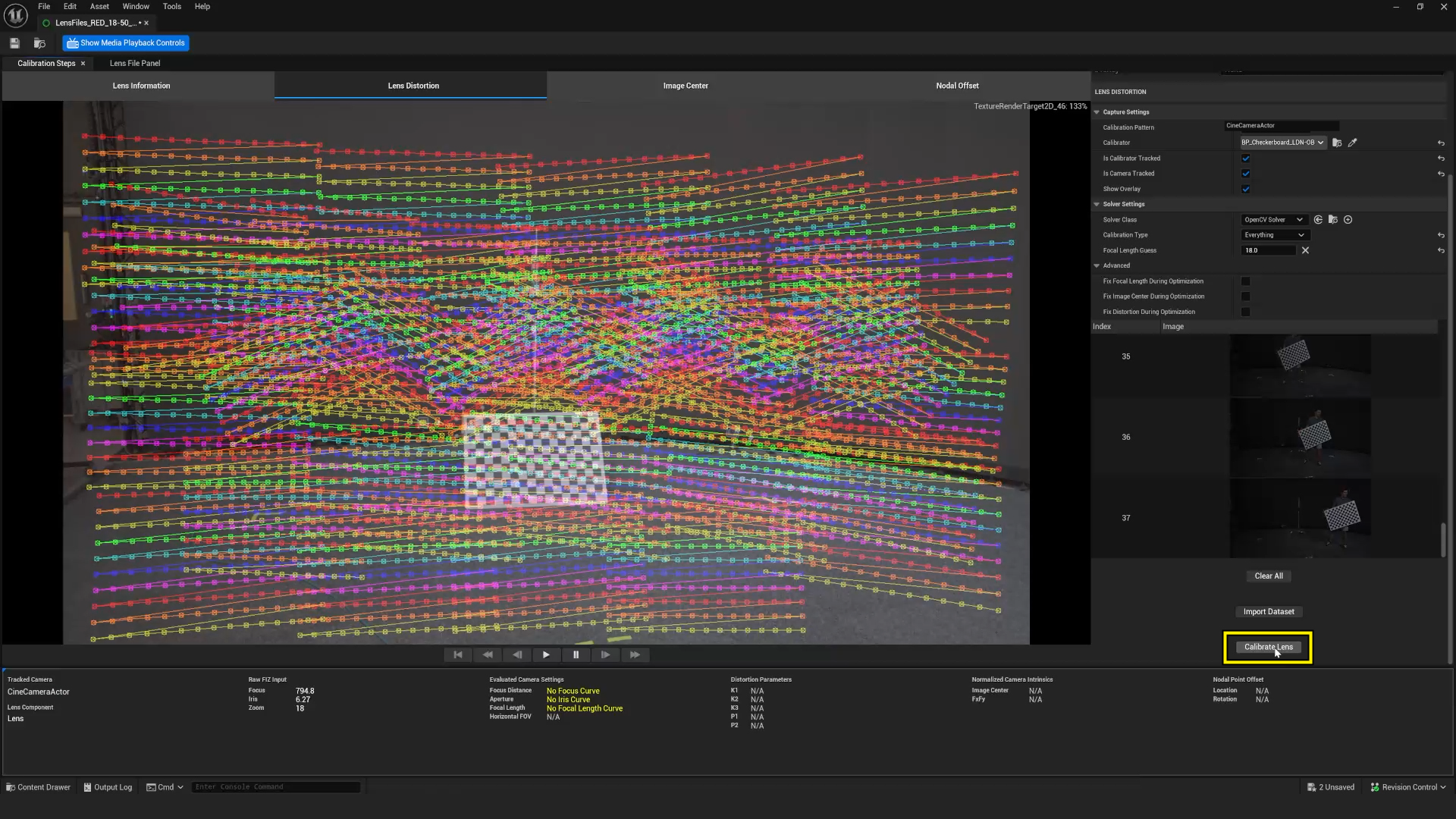
Read the screenshot as evidence, not a preset
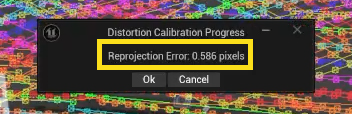
The colored observations in the screenshot come from sampling a checkerboard across the image. Epic recommends varied positions, orientations, and depths, with the camera held still during that capture step. Focus and zoom can change the calibration, so one solve is not a universal profile for every lens setting. The smaller image below is a reprojection-error dialog; its example number is not a pass threshold for your project.
Source: Camera Lens Calibration Quick Start Guide
Define a repeatable acceptance test
Atlas checklist
After following the version-matched procedure, test alignment in the parts of the frame and the focus range your shot actually uses. Keep the camera recording mode, lens identity, and tracker mounting arrangement with the calibration notes. If someone changes a relevant part of that arrangement, ask the calibration lead what must be measured again.
Give the camera team a way to report a visible mismatch without needing to diagnose it. A saved frame, the lens setting, and a short description of the move are more actionable than “the background feels wrong.”
- Name the camera, lens, sensor mode, and tracking configuration.
- Validate beyond the center of the frame.
- Keep the calibration version with the shot records.
A calibration belongs to a documented camera configuration—not just a lens name.
Sources & evidence
Primary documentation establishes tool behavior or a reported production. Checklists and illustrative examples are Atlas editorial guidance, not results of independent testing. Match documentation to your installed version.
Source published: Not established · Retrieved 16 September 2026